Extend No Such Localization
There are generally two ways to extend No Such Localization:
- Creating new
Localizercomponents. - Creating new
Translation Sources.
Creating Localizer Components
The more common way of extending No Such Localization is writing new Localizer components. In this section we look at the code of three different Localizers that are included in the Pro version of No Such Localization.
Creating a Basic Localizer: SliderDirectionLocalizer
This localizer toggles the @UnityEngine.UI.Slider.direction property of the Slider depending on the RTL-ness of current language.
 Slider LTR for English
 Slider RTL for Arabic
[RequireComponent(typeof(Slider))]
public class SliderDirectionLocalizer : ComponentLocalizer<SliderDirectionLocalizer, Slider> {
	public override void UpdateComponent() {
		string lang = LocalizationService.CurrentLanguage;
		_component.direction = LocalizationUtils.IsLangRTL(lang)
			? Slider.Direction.RightToLeft
			: Slider.Direction.LeftToRight;
	}
}
The simplest way to create a new Localizer is to subclass ComponentLocalizer<LT, CT>. The type parameters are the class you are making and the component that your class localizes. Next you need to override the UpdateComponent() method. For this simple Localizer all that was needed was to set direction based on the RTL-ness of current language.
Editor
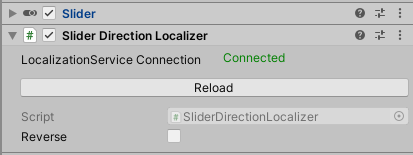
The default Editor often times suffices. Note that the it however lacks the common Localization service status. You can write an Editor to include the service status by extending the ComponentLocalizerEditor class.
[CustomEditor(typeof(SliderDirectionLocalizer))]
public class SliderDirectionLocalizerEditor : ComponentLocalizerEditor<SliderDirectionLocalizerEditor, SliderDirectionLocalizer, Slider> {}
Note
If you are not familiar with Editor development in Unity, checkout Unity's documentation website.
Creating a Text Localizer: TextLocalizer
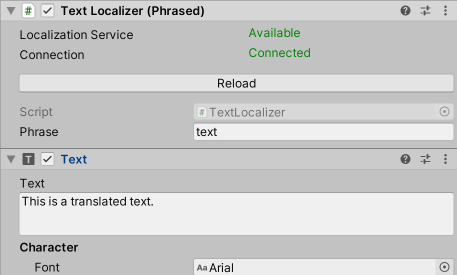
This localizer changes the text property of a Text UI component. In addition to current language, the localizer component needs a phrase such as "pageTitle" or "back_button_text" to translate into the current language. No Such Localization contains a base class for such localizers that need an additional phrase called PhrasedComponentLocalizer<LT, CT>.
	[RequireComponent(typeof(Text))]
    public class TextLocalizer : PhrasedComponentLocalizer<TextLocalizer, Text> {
        public override void UpdatePhrasedComponent() {
            _component.text = _translation;
        }
    }
The only difference from the basic localizer discussed before is subclassing of PhrasedComponentLocalizer<LT, CT> and overriding UpdatePhrasedComponent(). _translation is the phrase translated to current language and you can use it when updating the target component.
Editor
The editor is going to be very similar to the basic localizer implemented in the previous section:
    [CustomEditor(typeof(TextLocalizer))]
    public class TextLocalizerEditor : ComponentLocalizerEditor<TextLocalizerEditor, TextLocalizer, Text> {
    }
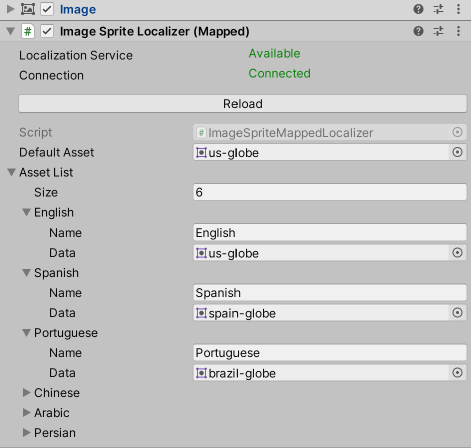
Creating an Asset Map Localizer: ImageSpriteMappedLocalizer
Another common type of Localizers have a map from languages to an asset type (Sprite, Font, Alignment, etc.).
To create a Localizer of this category, you need to create two classes:
- AssetDataType class for the specific field you want to localize, i.e. Sprite, Font, etc.
Note: Create these classes in
LocalizedAssetDataTypes.csfile. You need these once per asset type. Declaring them in a central location avoids declaring them multiple time by mistake.
	[Serializable]
    public class LocalizedAssetDataSprite : LocalizedAssetData<Sprite> {
        public LocalizedAssetDataSprite(string name, Sprite data) : base(name, data) { }
    }
- Localizer class that subclasses AssetMapComponentLocalizer<LT, CT, AT, LAD>.
_assetsfield contains the map of language -> asset that you create in Unity's Inpsector. Use it to localize the target component.
	[RequireComponent(typeof(Image))]
    public class ImageSpriteMappedLocalizer : AssetMapComponentLocalizer<ImageSpriteMappedLocalizer, Image, Sprite, LocalizedAssetDataSprite> {
        public override void UpdateComponent() {
            string lang = LocalizationService.CurrentLanguage;
            if (string.IsNullOrEmpty(lang)) return;
            _component.sprite = _assets.ContainsKey(lang) && _assets[lang] != null ? _assets[lang] : _defaultAsset;
        }
    }
The editor is going to be similar to other editors discussed above.