CSV Translation Source
You can load translations from a .csv asset using CSVTranslationSource component.
Note
Comma Separated Values, or CSV, is a popular file format for storing tabular data like that of a spreadsheet.
CSV Format
You can enter your translations in your .csv file in two different formats.
1. Single translation per line
In this format each line contains 3 values. The phrase, the locale (language) and the translation. The first line can optionally be the header and you have the option to ignore it when importing the data in Unity.

2. Multiple translations per line
In this format, you can provide multiple translations for the same phrase in each line. The first line must start with and empty cell followed by the list of locales (languages) for translations. Each subsequent line starts with the phrase, followed by translations into the langauges defined in the first row. All lines need to contain the same number of fields.

Regardless of what format you use, you can split your translations into multiple documents. How you want to split your translations is up to you. I recommend splitting your translations in two ways to keep each file from growing too large and becoming unmanagable:
- Group phrases logically and include each group in a separate file. For example phrases in your game would be split into these groups: main menu phrases, level1 phrases, level2 phrases, new year online event phrases, etc.
- Include translations for each language in a separate spreadsheet. This way the translators for each language work in their isolated file and won't accidentally mess up translations for other langauges.
How to Use the CSV Translation Source in Unity
To use CSVTranslationSource in a scene:
- Add a new GameObject to your scene.
- Add a CSVTranslationSource component.
- Set the "Text Asset" field to the .csv file that contains the translations.
- Set the "CSV line format" to the format you used in your CSV file.
- Set the "Has Header" flag depending on whether you used a header row in your CSV that needs to be ignored. When using "multiple translations" format, the header row is mandatory and cannot be omitted because it contains the name of langauges for translations.
- To load the translations in Editor, press the "reload" button in the inspector.
If things work correctly, you should be able to see the translations from your CSV file in the inspector window for the CSVTranslationSource component.
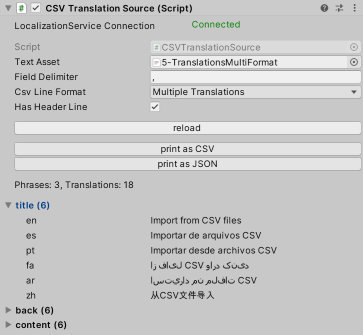
The status of the last load will be shown in Inspector for the CSVTranslationSource component. If there is an error there will be an info box with the error in the inspector along with a console error message.

See Also
- Read the Getting Started page to see
No Such Localizationin action.